Local Authentication Policy Page
To open this page, in the Settings Pane, select  > USERS & ACCOUNTS > Local Authentication Policy.
You can use this page to:
PASSWORD POLICY tab
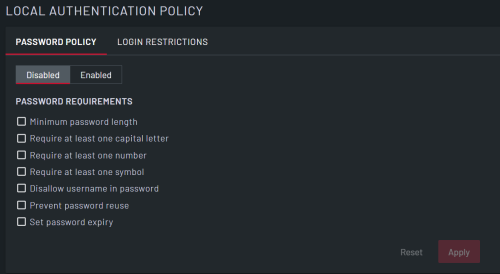
| Field | Description |
|---|---|
| DIsabled/Enabled | Select whether the password policy is enabled or disabled. When you select Enabled, any check boxes you select are applied to passwords. |
| Minimum password Length | Select the checkbox to set a minimum password length, then enter the number of characters required from 1 to 128. By default this is set to a minimum password length of 8 characters. |
| Require at least one capital letter | Select the checkbox for the password to require at least one capital letter. This is selected by default. |
| Require at least one number | Select the checkbox for the password to require at least one number. This is selected by default. |
| Require at least one symbol | Select the checkbox for the password to require at least one symbol. This is selected by default. |
| Disallow username in password | Select the checkbox to stop the user from entering their username as part of the password. This is selected by default. |
| Prevent password reuse | Select the checkbox to stop the user from reusing a password, then select one of the following:
|
| Set password expiry | Select the checkbox to set how long until the password expires, then enter the number of days for password expiry. |
| Reset | Clear all selections. |
| Apply | Apply all selections. |
LOGIN RESTRICTIONS tab
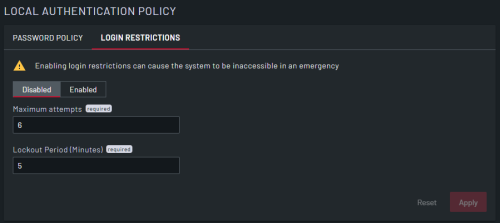
| Field | Description |
|---|---|
| Disabled/Enabled | Select whether login restrictions are enabled or disabled. |
| Maximum attempts | Enter the number of times a user can enter an incorrect password before being locked out. |
| Lockout Period (Minutes) | Enter the number of minutes a user is locked out after the maximum incorrect login attempts |
| Reset | Clear all selections. |
| Apply | Apply all selections. |