SSH Parameters Page
To open this page, in the Settings Pane, select  > Services > SSH Parameters.
You can use this page to:
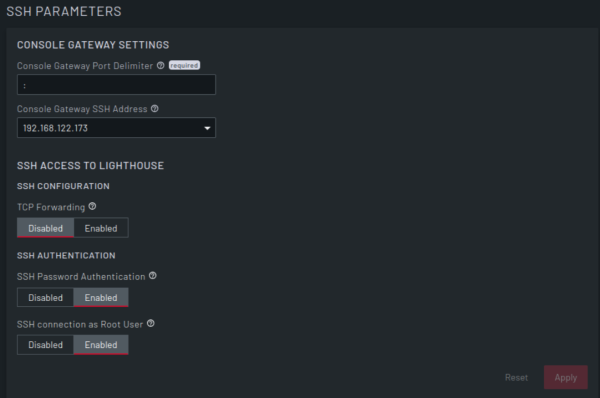
| Field | Description | |
|---|---|---|
| Console Gateway Settings | Console Gateway Port Delimiter |
Enter a delimited character. The carat, ^, is the most common alternative. Note: The auto-generated link default delimiter is ' |
| Console Gateway SSH Address |
Enter an address from which to SSH. Note: The list of available addresses contains the current network interfaces and external network addresses. The value defaults to |
|
| SSH Access to Lighthouse | TCP Forwarding | Select whether to Enable or Disable. When set to Enable, allows SSH clients to forward TCP traffic through the secure SSH tunnel. Used primarily for port forwarding and SSH "jump" connections. Does not interact with firewall forwarding rules. This is disabled by default. |
| SSH Password Authentication |
Set this field to Enabled to allow using a password for SSH connections for all users, including the root user. Notes: With Lighthouse version 24.06.0 and later, by default any AWS Lighthouse instance created has this setting disabled. This setting affects every user account.
|
|
| SSH Connection as Root User |
Set this field to Enabled to allow the root user to SSH into Lighthouse. Notes: With Lighthouse version 24.06.0 and later, by default any AWS Lighthouse instance created will have this setting disabled. This setting only affects the
root user.
|
|
| Reset | Clear all selections. | |
| Apply | Apply all selections. | |
 > SYSTEM> Network Settings page.
 > USERS & ACCOUNTS > Local Users and then configuring per user.