HTTPS Certificate Page
To open this page, in the Settings Pane, select  > SECURITY > HTTPS Certificate.
You can use this page to Examine or Modify the Lighthouse SSL Certificate

Current SSL Certificate/Pending Request table
Note: The Pending Request table displays above the Current SSL Certificate table only after a new certificate request is added.
The following table shows the fields for the Current SSL Certificate and Pending Request tables:
| Field | Description |
|---|---|
| Common Name | Read-only field that displays the common name for the certificate authority. |
| Subject Alternative Names | Read-only field that displays alternative names for which the certificate is valid. A domain name can be an IP address or a domain. |
| ORG Unit | Read-only field that displays the organizational unit to which the certificate belongs. |
| Organization | Read-only field that displays the organization to which the certificate belongs. |
| City | Read-only field that displays the locality or city where the organization is located. |
| State | Read-only field that displays the state or province where the organization is located. |
| Country | Read-only field that displays the country where the organization is located. |
| Read-only field that displays the email address for the organization contact, for example the certificate administrator or IT department. | |
| Issue Date | Read-only field that displays the issue date for the certificate. This field is available only in the Current SSL Certificate table. |
| Expiry Date | Read-only field that displays the date the certificate expires. This field is available only in the Current SSL Certificate table. |
| Add New Certificate | Click to open the ADD NEW HTTPS CERTIFICATE dialog. This field is available only in the Current SSL Certificate table. |
| Download current signing request | Click to download the pending CSR for signing. This field is available only in the Pending Request table. |
| Delete current signing request | Click to delete the pending CSR. When the confirmation dialog displays, you must click Delete to confirm deletion of the CSR. This field is available only in the Pending Request table. |
| Certificate File | Click Select file to navigate to and upload a signed certificate file. The file must be in PEM format. This field is available only when the Pending Request table is displayed. |
| Reset | Reset the changes. |
| Apply | Apply all changes. |
ADD NEW HTTPS CERTIFICATE dialog
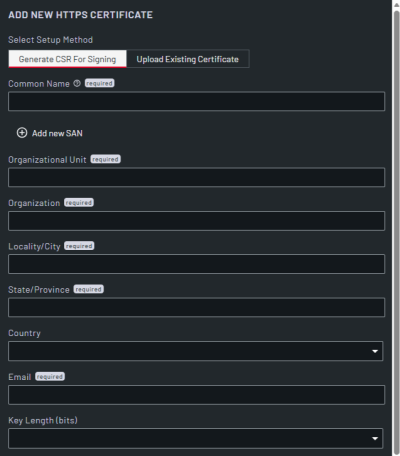
| Field | Description |
|---|---|
| Select Setup Method | Select from Generate CSR For Signing and Upload Existing Certificate. The fields update depending on the selection. |
| Common Name | Enter the common name for the certificate authority. This field accepts wildcards, for example, *.example.com. This field is available only if Select Setup Method is set to Generate CSR For Signing, and is required. |
| Add New SAN | Click to add additional subject alternative names. This field is available only if Select Setup Method is set to Generate CSR For Signing. |
| Subject Alternative Names | Enter any alternative names for which the certificate is valid. A domain name can be an IP address or a domain.
This field accepts wildcards, for example, *.example.com. This field is available when you click Add New SAN, and only if Select Setup Method is set to Generate CSR For Signing. |
| Organizational Unit | Enter the organizational unit to which the certificate belongs. This field is available only if Select Setup Method is set to Generate CSR For Signing, and is required. |
| Organization | Enter the organization to which the certificate belongs. This field is available only if Select Setup Method is set to Generate CSR For Signing, and is required. |
| Locality/City | Enter the locality or city where the organization is located. This field is available only if Select Setup Method is set to Generate CSR For Signing, and is required. |
| State/Province | Enter the state or province where the organization is located. This field is available only if Select Setup Method is set to Generate CSR For Signing, and is required. |
| Country | From the drop-down, select the country where the organization is located. This field is available only if Select Setup Method is set to Generate CSR For Signing. |
| Enter the email address for the organization contact, for example the certificate administrator or IT department. This field is available only if Select Setup Method is set to Generate CSR For Signing, and is required. |
|
| Key Length (bits) | From the drop-down, select the number of bits in the certificate's key. Higher numbers mean stronger security. This field is available only if Select Setup Method is set to Generate CSR For Signing. |
| Challenge Password | Enter the shared secret to authenticate the certificate owner. This field is required if the Private Key File is encrypted. |
| Password Confirmation | Re-enter the Challenge Password. This field is required if the Private Key File is encrypted. |
| Certificate File | Click Select file to navigate to and upload an existing certificate file. The file must be in PEM format. This field is available only if Select Setup Method is set to Upload Existing Certificate, and is required. |
| Private Key File | Click Select file to navigate to and upload a private key file to use when generating the CSR. The file must be in PEM format. This field is required if Select Setup Method is set to Upload Existing Certificate, otherwise it is optional. |
| Cancel | Cancel changes and close the dialog. |
| Generate CSR | Click this to generate a CSR. The dialog closes and the Pending Request table displays on the HTTPS Certificate page. This field is available only if Select Setup Method is set to Generate CSR For Signing. |
| Add Certificate | Click this to add the existing certificate. The certificate displays in the Current SSL Certificate table, and a browser request is required. This field is available only if Select Setup Method is set to Upload Existing Certificate. |