Cellular Modem Firmware Upgrade
Note: This section applies to cellular variants only. The OM1300 does not support cellular connectivity.
This Cellular Modem Firmware Upgrade procedure provides an automatic download and upgrade process for carriers, and, a secondary manual upgrade process for users who must use a firmware set that has not been tested by Opengear or use a carrier that is not supported by the standard cellular modem firmware.
Opengear devices use a standard modem, however, due to the variety of carriers that exist, there is a wide variety of firmware packages which are offered by Sierra Wireless (Opengear's modem provider) in order to accommodate these different carriers. When Opengear devices are supplied, they are provided with the most common set of modem firmware pre-installed; this minimizes difficulty when setting up cellular services on devices. The manual cellular upgrade procedure supports users deploying cellular capable devices to regions that use a carrier that is not supported by the standard cellular modem firmware.
Note: The Cellular Firmware Upgrade procedure is only available through terminal or shell access. The use of automated tools such as cron jobs is not supported and is therefore discouraged.
Modem Firmware Upgrade Procedures
Cellular Availability During Upgrade
The cell-fw-update command disables the cellular modem during the upgrade process. This causes a loss of availability of the Out-of-Band (OOB) link which can only be restored when the cellular modem has returned to a working state. If in failover, the modem upgrade is deferred until the device is not in failover. To override this feature, set the --ignore-defer flag.
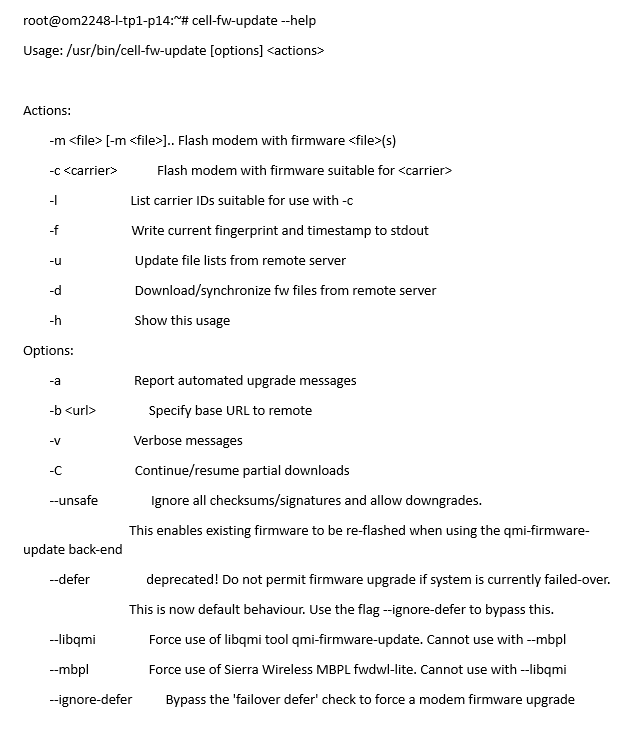
cell-fw-update Help
root@om2248-l-tp1-p14:~# cell-fw-update --help
Usage: /usr/bin/cell-fw-update [options] <actions>
Actions:
-m <file> [-m <file>].. Flash modem with firmware <file>(s)
-c <carrier> Flash modem with firmware suitable for <carrier>
-l List carrier IDs suitable for use with -c
-f Write current fingerprint and timestamp to stdout
-u Update file lists from remote server
-d Download/synchronize fw files from remote server
-h Show this usage
Options:
-a Report automated upgrade messages
-b <url> Specify base URL to remote
-v Verbose messages
-C Continue/resume partial downloads
--unsafe Ignore all checksums/signatures and allow downgrades.
This enables existing firmware to be re-flashed when using the qmi-firmware-update back-end
--defer deprecated! Do not permit firmware upgrade if system is currently failed-over.
This is now default behaviour. Use the flag --ignore-defer to bypass this.
--libqmi Force use of libqmi tool qmi-firmware-update. Cannot use with --mbpl
--mbpl Force use of Sierra Wireless MBPL fwdwl-lite. Cannot use with --libqmi
--ignore-defer Bypass the 'failover defer' check to force a modem firmware upgrade
Update Local File List and Download Latest Firmware Files
This procedure updates the local file list and downloads the latest firmware files.
Note: cell-fw-update can be run directly from a CLI shell as root and requires no configuration. You can combine this update action with the following download operation by providing both -u and -d simultaneously.
root@om8148-10g-tp2-p35:~# cell-fw-update -ud
Waiting for clients to stop using the modem...
The modem is now locked
=== INFO ===
The modem is locked by client cellfw
No clients want to use the modem
UIM failover status is disabled
Active UIM slot is 1 (ICCID: 89610180003137049629)
Operator is telstra corp. ltd.
0157863e6fe95988415b264e35ac0b4f687ffbf9 2024-01-18
download e4c83bb1ae1e5be73c3a254fca7e13e38b33e39a SWIX65C_02.13.08.00.cwe
download 31dca80c90d37100b17ac8e49998ce35724c6b90 SWIX65C_02.13.08.00_GENERIC_030.047_001.nvu
download 5ed78eb2d69d651d73e177c855eaecb02c6df0b0 SWIX65C_02.13.08.00_PTCRB_030.045_001.nvu
download 91b8c518ddfad508ffe22c0f099465abb8b31d88 carrier-canon.txt
download b8d3a9cb4faabcf6f5e1fa5acb0f4e41ed72f506 carriers.txt
copy a6ddf97fb6b6f8dd0d011d54dcdfe34db64b25ee cell-firmware.txt
copy - localfiles.txt
copy - localdb.txt
copy - SHA1SUMS
Note: The cell-fw-update -u and cell-fw-update -d commands may be run separately.
List Supported Carriers
The resulting carriers shown are for example only (local results may vary).
root@om2216-l:~# /etc/scripts/cell-fw-update -l
att AT&T
docomo DoCoMo
generic Generic
kddi KDDI
kt Korea Telecom
rogers Rogers
softbank SoftBank
sprint Sprint
telstra Telstra
telus Telus
tmo T-Mobile
uscellular U.S. Cellular
verizon Verizon Wireless
Automatic Firmware Update for Current Carrier
This procedure detects the currently connected carrier and updates the firmware set for that specific carrier. A firmware set consists of the modem’s firmware image (.cwe) and a carrier specific PRI firmware image (.nvu). This set is required for modem operation.
cell-fw-update -a
Firmware Update For Specific Carrier
Specify the carrier for which you want to update the firmware.
cell-fw-update -c <carrier>
Note: Use the cell-fw-update -l command to list supported carriers.
Manual Firmware Update
Specify a firmware set to download to the modem. This allows you to update the modem with a specific firmware set instead of one provided by Opengear FTP. The path to the firmware set specified must be relative from the directory /mnt/nvram/cellfw/.
WARNING: This operation must be used with great caution as can result in the modem becoming permanently unavailable or damaged. Use at your own risk.
root@om8148-10g-tp2-p35:~# cell-fw-update --unsafe -m SWIX65C_02.13.08.00.cwe -m SWIX65C_02.13.08.00_GENERIC_030.047_001.nvu
Waiting for clients to stop using the modem...
The modem is now locked
=== INFO ===
The modem is locked by client cellfw
No clients want to use the modem
UIM failover status is disabled
Active UIM slot is 1 (ICCID: 89610180003137049629)
Operator is telstra corp. ltd.
Application version: 1.0.2307.1
Target image Info:
Carrier :GENERIC
FW Version :02.13.08.00
Model ID :SWIX65C
Package ID :001
PRI Version:030.047
SKU :9999999
Switching device into download mode ...
Modem Needs FW
Modem Needs PRI
Downloading: /tmp/cell-fw-update.4045/SWIX65C_02.13.08.00.cwe
Downloading: /tmp/cell-fw-update.4045/SWIX65C_02.13.08.00_GENERIC_030.047_001.nvu
All image data was downloaded successfully.
Device is about to reset ...
Waiting for modem to come up in ONLINE mode ...
Modem is now in ONLINE mode ...
FW update status: Successful
FW info from modem:
Model ID : EM7565
FW Version : SWIX65C_02.13.08.00
Carrier Name : GENERIC
Carrier PRI Revision: 030.047_001
Firmware download process completed successfully.
INFO: QDL Port: /dev/wwan0qdl0
INFO: Device Path: /dev/wwan0qmi0
INFO: FW Path: /tmp/cell-fw-update.4045
Waiting for modem to disconnect from the host ...
Modem disconnected from host.
Waiting for modem to come up in BOOT and HOLD mode ...
BOOT and HOLD Mode. Downloading firmware ...
[/dev/wwan0qmi0] Device list of stored images retrieved:
[/dev/wwan0qmi0] Device list of stored images retrieved:
<14>Jan 22 06:05:25 cell-fw-update: The firmware was successfully stored on the modem
[/dev/wwan0qmi0] Device list of stored images retrieved:
SEE all cell firmware installed on the modem via ogcli
Use the following to return all cell firmware installed on the modem:
# ogcli get cellfw/installed
The following shows an example result:
# ogcli get cellfw/installed
ogcli get cellfw/installed
firmware[0].active=true
firmware[0].carriers[0].active=false
firmware[0].carriers[0].full_firmware_version="02.17.08.00_CARRIER_030.094_001"
firmware[0].carriers[0].name="CARRIER"
firmware[0].carriers[0].unique_id="030.094_001"
firmware[0].carriers[1].active=false
firmware[0].carriers[1].full_firmware_version="02.17.08.00_CARR2_030.018_001"
firmware[0].carriers[1].name="CARR2"
firmware[0].carriers[1].unique_id="030.018_001"
firmware[0].carriers[2].active=false
firmware[0].carriers[2].full_firmware_version="02.17.08.00_GENERIC_030.081_001"
firmware[0].carriers[2].name="GENERIC"
firmware[0].carriers[2].unique_id="030.081_001"
firmware[0].failures=0
firmware[0].firmware_version="02.17.08.00"
firmware[0].slot=1
modem.model="TEST123"
modem.sku_id="1122334"
modem.slots=3
Update Cell Firmware with a Cell Only Connection
CAUTION: When the cellular firmware update is initiated, the connection to the device is lost. It is recommended to have console access to the device BEFORE the cellular firmware update is initiated.
View Installed Cell Firmware
Knowing the cellular modem model and the corresponding cellular firmware that can be installed for this device helps with the manual installation of cellular firmware.
Use the following to return all cell firmware installed on the modem:
ogcli get cellfw/installed
The following shows an example result, which includes the cellular modem model installed on the device:
# ogcli get cellfw/installed
ogcli get cellfw/installed
firmware[0].active=true
firmware[0].carriers[0].active=false
firmware[0].carriers[0].full_firmware_version="02.17.08.00_CARRIER_030.094_001"
firmware[0].carriers[0].name="CARRIER"
firmware[0].carriers[0].unique_id="030.094_001"
firmware[0].carriers[1].active=false
firmware[0].carriers[1].full_firmware_version="02.17.08.00_CARR2_030.018_001"
firmware[0].carriers[1].name="CARR2"
firmware[0].carriers[1].unique_id="030.018_001"
firmware[0].carriers[2].active=false
firmware[0].carriers[2].full_firmware_version="02.17.08.00_GENERIC_030.081_001"
firmware[0].carriers[2].name="GENERIC"
firmware[0].carriers[2].unique_id="030.081_001"
firmware[0].failures=0
firmware[0].firmware_version="02.17.08.00"
firmware[0].slot=1
modem.model="TEST123"
modem.sku_id="1122334"
modem.slots=3
Download Cell Firmware
You can either:
-
Complete the download on a factory reset device:
-
Create the cellfw directory into which the firmware files will download.
cd /mnt/nvram/
sudo mkdir cellfw
cd cellfw -
Download a zip file of all the cellular firmware files.
sudo wget https://ftp.opengear.com/download/cellfw/cellfw-bundle-20250520.zip
-
Extract the cellular firmware bundle.
sudo unzip -j cellfw-bundle-20250520.zip
-
-
Complete a targeted download:
Note: A targeted download is useful if the device has had a previous cellular firmware download and only requires specific files from the ftp. The user should know which cellular firmware files are required.
-
Change directory to the local cellfw directory where firmware files are stored.
cd /mnt/nvram/cellfw/
-
Backup any local files that will be overwritten.
sudo cp cell-firmware.txt cell-firmware.txt.bak
sudo cp SHASUMS SHASUMS.bak -
At a minimum, download the cell-firmware.txt, SHASUMS, and the pre-requisite cellular firmware (*.cwe) and carrier PRI (*.nvu).
sudo wget https://ftp.opengear.com/download/cellfw/cell-firmware.txt -O cell-firmware.txt
sudo wget https://ftp.opengear.com/download/cellfw/SHA1SUMS -O SHA1SUMS
sudo wget https://ftp.opengear.com/download/cellfw/SWI9X50C_01.14.24.00.cwe -O SWI9X50C_01.14.24.00.cwe
sudo wget https://ftp.opengear.com/download/cellfw/SWI9X50C_01.14.24.00_VERIZON_002.064_000.nvu -O SWI9X50C_01.14.24.
00_VERIZON_002.064_000.nvu
-
Identify Compatible Cellular Firmware Files
After you download the cell-firmware.txt file, you can use the file to identify cellular modem firmware files that are compatible with your cellular modem based on the model of your device.
cat /mnt/nvram/cellfw/cell-firmware.txt | grep $(ogdeviceinfo --no-cache system-sku-number | tr '[:upper:]' '[:lower:]' )
To further refine the list, only use the firmware files for the cellular modem model. This can be found from the previous instruction that showed how to view the currently installed firmware.
ogcli get cellfw/installed | grep modem.model
Update Cellular Firmware
Note: The manual mode checks the SHA1SUM of the specified firmware files to ensure integrity and checks the versions to ensure that they are valid for this cellular modem model.
Use the manual mode to install the cellular firmware ensuring both required files are included for the supported cellular modem the device supports, cellular firmware (*.cwe), and carrier PRI (*.nvu).
sudo cell-fw-update -m SWI9X50C_01.14.05.00.cwe -m SWI9X50C_01.14.05.00_KT_002.016_004.nvu
Modem Update Troubleshooting Guide
The following procedure can be used to determine if the cellular modem is ready and available and may provide recovery if necessary if the upgrade or modem repeatedly fails.
Determine if Modem is Ready & Available
The service ModemManager is an essential dependency for all cellular modem operations. Please ensure it is running.
root@om8196-10g:~# systemctl start ModemManager
If the modem is running correctly, it should be able to be detected by ModemManager within 60 seconds of the service starting.
root@om8196-10g:~# mmcli -L
If the modem was not detected or is still problematic, the modem must be recovered.
Recover from Boot & Hold [EM9291 ONLY]
First, check if the modem is stuck in Boot & Hold mode. This can happen on a cellular firmware upgrade failure. If this is the case, then the device file /dev/wwan0qdl0 will be exposed, run:
root@om8196-10g:~# ls /dev/wwan0qdl0
If the device file was found, you can reset the modem with the following command:
root@om8196-10g:~# /usr/libexec/sierra/mbpl/fwdwl-lite --qdl /dev/wwan0qdl0 –reset
You should also reset the cellular modem’s Device Management Service with the following command:
root@om8148-10g~# qmicli -p -d /dev/wwan0qmi0 --device-open-qmi --dms-reset
You can now run Determine if Modem is Ready & Available.
Power Cycle [EM9291 ONLY]
If the modem cannot be recovered manually as per the previous steps, it may be recoverable through a power cycle. If the product is installed in the field and a full power cycle is not possible, the cellular modem can be individually rebooted with a script.
This should only be performed by support staff and it is not advised to inform customers about this unsupported feature. The script can be executed with the following command:
root@om8148-10g-tp2-p34:~# /usr/unsupported/bin/cell-reboot
You can now run Determine if Modem is Ready & Available.
Determine if the Modem is Currently Being Upgraded
The simplest way to determine if the modem is currently being upgraded is to check the currently running processes an look for cell-fw-update. This is done through the following check:
ps aux | grep cell-fw
The following example shows that an upgrade is running:
root@om2216-l:~# ps aux | grep cell
root 122965 0.2 0.0 4780 3992 pts/0 S+ 23:42 0:00 /bin/bash /usr/bin/cell-fw-update -aud
root 125966 0.0 0.0 3332 1756 pts/1 S+ 23:47 0:00 grep cell
The following example shows that there is no upgrade running:
root@om2216-l:~# ps aux | grep cell-fw
root 126417 0.0 0.0 3332 1776 pts/1 S+ 23:48 0:00 grep cell-fw