HTTPS Certificate
The Operations Manager ships with a private SSL Certificate that encrypts communications between it and the browser.
-
To examine this certificate or generate a new Certificate Signing Request, select CONFIGURE > SERVICES > HTTPS Certificate.
The details of the Current SSL Certificate are shown on the landing page.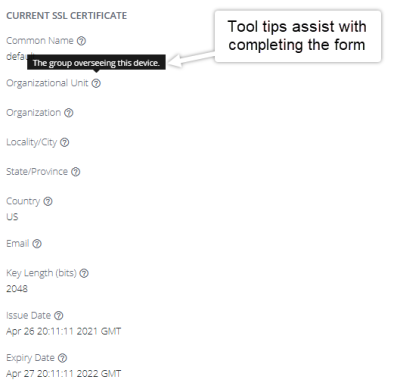
-
To generate a new SSL certificate, scroll down to the Certificate Signing Request form and complete the appropriate fields:
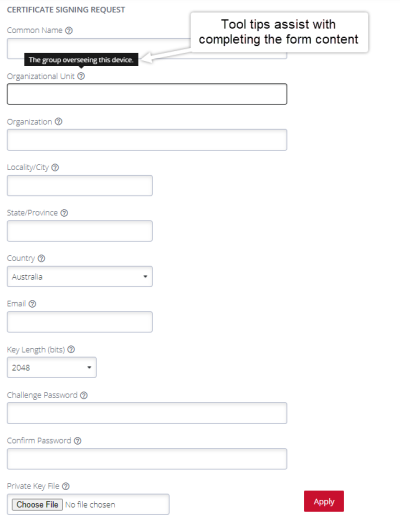
Field Description Common Name The specific domain to which the certificate is issued. This is automatically added as a Subject Alternative Name (SAN). Subject Alternative Names Enter any alternative names for which the certificate is valid. A domain name can be an IP address or a domain.
Click Add SAN to add additional subject alternative names.Organizational Unit Enter the organizational unit to which the certificate belongs. Organization Enter the organization to which the certificate belongs. Locality/City Enter the locality or city where the organization is located. State/Province Enter the state or province where the organization is located. Country Enter the country where the organization is located. Email Enter the email address for the organization contact, for example the certificate administrator or IT department. Challenge Password Enter the shared secret to authentication the certificate owner. Confirm Password Re-enter the Challenge Password. Generate Private Key Select whether to Enable or Disable the generation of a new private key for the CSR.
If set to Disable, and no Private Key File is provided, the existing private key is used.Key Length (bits) Enter the number of bits in the certificate's key. Higher numbers mean stronger security.
This field is available only if Generate Private Key is set to True.Private Key File Click Browse to navigate to and upload a private key file.
This field is available only if Generate Private Key is set to False. -
Click Apply.
-
To download a certificate, click Download.
-
To upload a signed certificate, under Upload Certificate, click Browse in the Certificate field then navigate to the certificate you want to upload.
-
Click Apply.