New Node Firmware Upgrade Page
To open this page, in the Menu Pane, select  Node Tools > Firmware Upgrade, then click the Schedule Upgrade button and select Node Firmware.
You can use this page to create an upgrade task.
Page Actions
| Action | Description |
|---|---|
| Stepper |
Displays where you are in the Firmware Upgrade Wizard: |
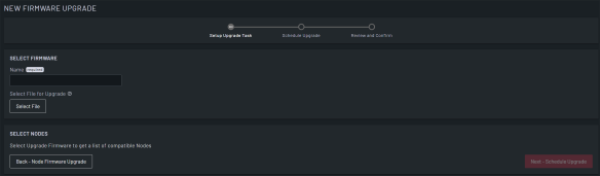
| Field | Description | |
|---|---|---|
| SELECT FIRMWARE | Name | Enter a name for the upgrade task. This field is mandatory. |
| Select File |
Click Select File to open the SELECT FIRMWARE dialog and select the firmware for the scheduled task. When you select a firmware file:
|
|
| Select Nodes | This section populates with nodes that are compatible with the selected firmware file. | |
| Filter | Click the Filter Nodes drop-down and select or create a filter to apply to the nodes, then select whether to view all nodes, connected nodes, disconnected nodes, or nodes with failover to cell that meet the filter criteria. | |
| Search | Type a search term to filter the nodes. | |
| Select | Select the check box next to the node(s) to include the node in the scheduled upgrade task. You cannot select nodes with a currently active or scheduled upgrade. | |
| State | Read-only field that displays the current state for the node. | |
| Node ID | Read-only field that displays the node ID. | |
| Node Name | Read-only field that displays the node name. | |
| Model | Read-only field that displays the device model for the node. | |
| Current Firmware | Read-only field that displays the current firmware installed on the node. | |
| Items Per page | Use the drop-down to select the number of nodes to display per page. | |
| Back - Node Firmware Upgrade | Click to return to the NODE FIRMWARE UPGRADE tab of the FIRMWARE UPGRADE page without scheduling a task. | |
| Next - Schedule Upgrade | Click to move to the Schedule Upgrade part of the Firmware Upgrade Wizard. | |
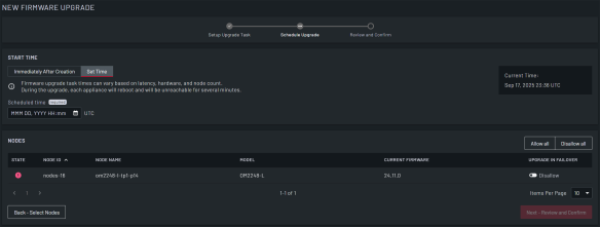
| Field | Description | |
|---|---|---|
| START TIME | When |
Select when the upgrade task starts. You can select from:
|
| Scheduled Time | Use the date picker to select the date and time for the task to start, then click OK. This field displays only if you select Set Time. | |
| Current Time | Read-only field that displays the current time. | |
| NODES | This table displays the following details for any selected nodes: | |
| Allow All | Click to allow the upgrade to occur if the node is in failover. | |
| Disallow all | Click to disallow the upgrade to occur if the node is in failover. | |
| State | Read-only field that displays the state for the node. | |
| Node ID | Read-only field that displays the node ID. | |
| Node Name | Read-only field that displays the node name. | |
| Model | Read-only field that displays the device model for the node. | |
| Current Firmware | Read-only field that displays the current firmware installed on the node. | |
| Upgrade in Failover | Click the toggle to Allow or Disallow the upgrade to occur if the node is in failover. | |
| Items Per page | Use the drop-down to select the number of nodes to display per page. | |
| Back - Select Nodes | Click to return to the Setup Upgrade Task part of the Firmware Upgrade Wizard. | |
| Next - Review and Confirm | Click to move to the Review and Confirm part of the Firmware UpgradeWizard. | |
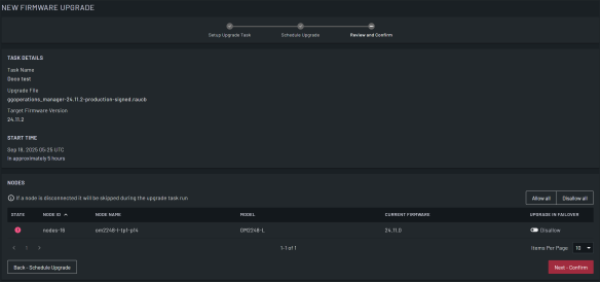
| Field | Description |
|---|---|
| TASK DETAILS |
Displays a read-only table with the following information:
|
| NODES |
|
| Back - Schedule Upgrade | Click to return to the Schedule Upgrade part of the Firmware UpgradeWizard. |
| Next - Confirm | Click to open the CONFIRM SCHEDULING OF UPGRADE dialog. |
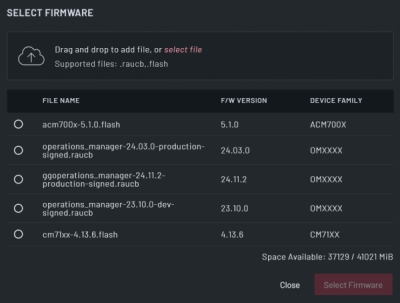
| Field | Description |
|---|---|
| Upload | Drag and drop a firmware file to upload or click select file. This adds the firmware file to the list displayed in the dialog. |
| Select | Select the radio button for the firmware file you want to use for the upgrade task. |
| File Name | Read-only field that displays the name of the file. |
| F/W Version | Read-only field that displays the firmware version for the file. |
| Device Family | Read-only field that displays the device family with which the firmware file is compatible. |
| Space Available | Read-only field that displays the space available for node firmware in /mnt/nvram/node_firmware. This is where the node firmware files are stored on Lighthouse. |
| Close | Click to close the dialog without selecting or uploading a firmware file. |
| Select Firmware | Click to select the chosen firmware for the upgrade task. |
CONFIRM SCHEDULING OF UPGRADE dialog
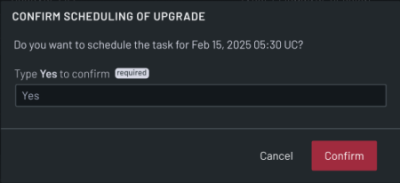
| Field | Description |
|---|---|
| Type Yes to confirm | Type "yes" to confirm the scheduling of the task. |
| Cancel | Click to close the dialog without making any changes. |
| Confirm | Click to schedule the task. |