Edit Scripts Template Page
To open this page, in the Menu Pane, select  Node tools > Configuration Templates, then select the SCRIPT tab and click the name of the template you want to modify.
On this page you can create, edit, or delete script templates
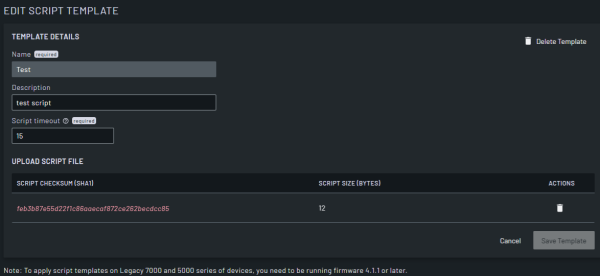
| Field | Description | |
|---|---|---|
| Template Details | Delete Template |
Click this to delete the template. |
| Name | Enter a name for the template. This field is mandatory. | |
| Description | Enter a description for the template. | |
| Script timeout | Enter the time to wait (in minutes) for the execution of the script. After timeout is reached, the script is stopped. This field is mandatory. | |
| Upload Script File | Upload | Select and upload the script file. Supported files: .sh This field displays only if there is no existing script file. |
| Script Checksum (SHA1) | The SHA1 checksum of script content. Click this to open the Manage Script Content dialog and update the script directly. When the script content is updated, this is temporarily replaced with “Modified (unsaved)” until you save the template. | |
| Script Size (Bytes) | Read-only field that displays the size of the script in bytes. | |
| Last Updated | Read-only field that displays the date the script was last updated. | |
| Updated By | Read-only field that displays the user who last updated the script. | |
| Delete Script | Click this to delete the script from the template. | |
| Cancel | Cancel the creation of the new template. You return to the Configuration Templates page. | |
| Save Template | Save the new template. | |
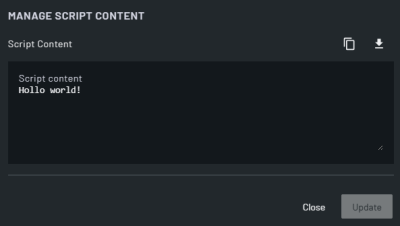
| Field | Description |
|---|---|
| Script Content | Editable field that displays the content of the script. |
| Copy Content | Click this to copy the script content to the clipboard. |
| Download | Click this to download the script locally. |
| Close | Click this to cancel any updates to the Script Content and close the dialog. |
| Update | Click this to update the Script Content and close the dialog. The scrip content does not persist until the template is saved. |