Configuration Section
The configuration section is a section within the CONFIGURATION MANAGEMENT page that displays the configuration settings for the section selected in the configuration selector.
The following configuration sections are available:
All sections
These fields and options are available as buttons at the bottom of every section.
| Field | Description | |
|---|---|---|
| Profile actions | Commit Profile | Click to push saved changes to all currently enrolled nodes under this profile or its children. This updates live nodes immediately. |
| Reset Changes | Click to reset the values back to the last saved changes before the current settings. | |
| Save Profile | Click to save the profile changes to the system. | |
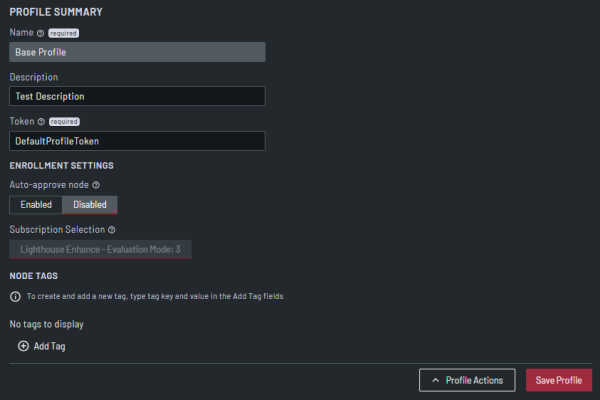
| Field | Description | |
|---|---|---|
| Name | Enter a unique name for the profile. This field is mandatory. | |
| Description | Enter a description of the profile. | |
| Token | Enter a token for the profile. The token you enter here is the password for the bundle. Any nodes that enroll via this bundle, use this token to connect to the LH. This field is mandatory. | |
| Enrollment Settings | Auto-Approve Node | Select whether to set auto approve for nodes using this profile to Enabled or Disabled. |
| Subscription Selection | Select the subscription type to apply to nodes using this profile. If there is only one subscription type available, it is selected automatically. | |
| Node Tags | Add Tag |
Click this to display the tag fields and then in the:
|
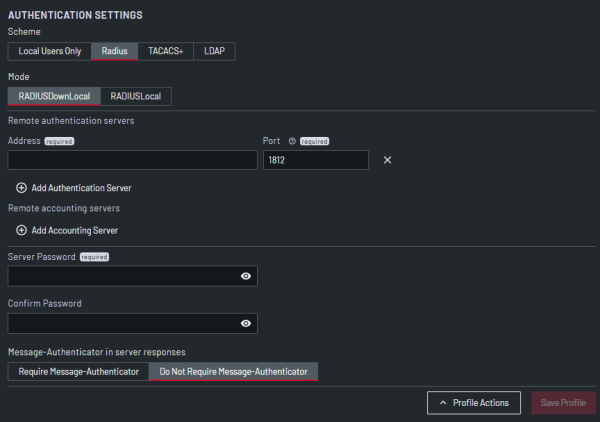
| Field | Description | |
|---|---|---|
| Scheme |
Select the authentication scheme to use for the profile. You can select from:
|
|
| Policy |
Select the authentication policy to use for the profile. If the Scheme is set to:
|
|
| Remote Authentication Servers | Address | Enter the IP address for the remote authentication server to query. |
| Port |
Enter the port for the remote authentication server to query.
|
|
| Add Authentication Server | Click this to add multiple remote authentication servers. | |
| Remote Accounting Servers | Address | Enter the IP address of the remote
accounting server to send accounting
information.
This is available only when the selected Scheme is RADIUS. |
| Port |
Enter the port of the remote accounting server to send accounting information. |
|
| Add Accounting Server | Click this to add multiple remote accounting
servers.
This is available only when the selected Scheme is RADIUS. |
|
| TACACS+ login method |
Select the method used to authenticate to the server, This is available only if the selected Scheme is TACACS+. You can select from:
|
|
| LDAP base DN | Enter the LDAP Base DN that corresponds to
the LDAP system being queried.
This is available only when the selected Scheme is LDAP. |
|
| LDAP Bind DN | Enter the distinguished name of a user with
privileges on the LDAP system to perform the
lookups required for retrieving the username of
the users, and a list of the groups they are
members of.
This is available only when the selected Scheme is LDAP. |
|
| Bind DN Password | Enter the password for the binding user.
This is available only when the selected Scheme is LDAP. |
|
| Server password | Enter the password for the server. This is available only when the selected Scheme is RADIUS or TACACS+. |
|
| Confirm server password |
Re-enter the password for the:
|
|
| Message Authenticator in server responses | Select whether Message-Authenticator is
required for server responses.
The default setting is Do not require
Message-Authenticator. If the default
setting is left, RADIUS responses may be
subject to BlastRADIUS attack.
This is available only when the selected Scheme is RADIUS. |
|
| TACACS+ service |
Enter the TACACS+ server to determine which set of attributes are returned by the server. This defaults to "raccess". |
|
| LDAP Username attribute | Enter the LDAP username attribute.
This depends on the underlying LDAP system.
Use sAMAccountName for Active Directory
systems, and uid for OpenLDAP based systems.
This is available only when the selected Scheme is LDAP. |
|
| LDAP group membership attribute | Enter the LDAP group membership attribute.
This is only required for Active Directory and is
generally memberOf.
This is available only when the selected Scheme is LDAP. |
|
| Ignore Referrals | If required, select the check box. When
checked, LDAP does not follow referrals to
other remote authentication servers when logging users in to Lighthouse. If multiple remote
authentication servers exist on the network,
checking this option may improve login times.
This is available only when the selected Scheme is LDAP. |
|
| SSL Protocol |
Select the required SSL protocol. You can
select from:
|
|
| Ignore SSL certificate errors | Select the check box to ignore SSL certificate
errors to ignore any SSL certificate errors
encountered when accessing LDAPS servers.
If this option is checked, a certificate file
uploaded will not be used.
This is available only when the selected Scheme is LDAP. |
|
| UPLOAD CERTIFICATE FILE | To upload a certificate file to validate LDAPS
servers, navigate to the directory that contains
the appropriate upgrade image file and drag
and drop the image onto the target page section or click select file to open a dialog.
Supported files are .crt, .cer, .ca-bundle, .p7b, .p7c, .p7s, .pem, .txt. This is available only when the selected Scheme is LDAP. |
|