Nodes Page
To open this page, in the Menu Pane, select  Nodes.
You can use this page to:
Page Actions
| Action | Description |
|---|---|
| Filter Nodes | Click and then select a node filter to apply. |
| Clear Node Filter | Click the x to clear the applied node filter. |
| Search | Type a search term and press enter to return nodes that match the search term. |
| Items Per Page | Use the drop-down to select the number of nodes to display per page. |
ENROLLED tab
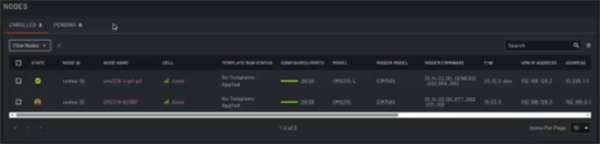
| Field | Description |
|---|---|
| Select | Select the check boxes to select the nodes. |
| Unenroll selected | Click this to unenroll any selected nodes. This option displays only when at least one node is selected. |
| Manage Profile Link | Click this to open the MANAGE NODE PROFILE LINK dialog, and link the node to a Group Profile. This option displays only when at least one node is selected. |
| State | Read-only field that displays the current state for the node. |
| Node ID | Read-only field that displays the ID for the node. |
| Node Name | The node name. Click this to open the Node Details page. |
| Cell | If cell health reporting is enabled, the field is available and displays the cell health status for the node. Click the cell health status to open the CELLULAR HEALTH DETAILS FOR [NODE] dialog. |
| Template Run Status | The status of the last run template. |
| Configured Ports | The number of ports configured on the device displayed as a progress bar. For example, 20/26 = 20 ports configured. |
| Model | Read-only field that displays the model for the node. |
| Modem Model | Read-only field that displays the model of the modem. If Lighthouse cannot retrieve this information, "Unavailable" displays; you can view the tool tip for more information. |
| Modem Firmware | The firmware installed on the modem. This field is blank if the Modem Model is "Unavailable". |
| F/W | Read-only field that displays the firmware installed on the node. |
| VPN IP Address | Read-only field that displays the node VPN address used to connect to Lighthouse via a VPN tunnel. |
| Address | Read-only field that displays all other known network addresses for the node. |
| Profile Name | The group configuration profile assigned to each node. Click the profile name to open the profile on the Configuration Management page. If no profile is associated with the node, you can click  to link a profile to the node. to link a profile to the node. |
| Commit Status | Read-only field that displays the commit status of the node. |
| Tags | A list of tags associated with the node. Click the edit node tags icon to open the ADD/EDIT NODE TAGS dialog. |
| Serial | Read-only field that displays the serial number of the device (node). |
| Last Updated | Read-only field that displays the time of the last node configuration retrieval. |
| Actions |
Select from the following actions:
|
 to open the SSH client and SSH into the node, if you have an SSH client configured.
PENDING tab
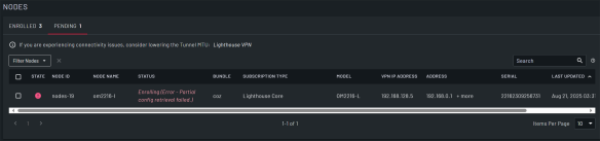
| Field | Description |
|---|---|
| Select | Select the check boxes to select the nodes. |
| Approve Selected | Click this to approve any selected nodes. This option displays only when at least one node is selected. |
| Unenroll Selected | Click this to unenroll any selected nodes. This option displays only when at least one node is selected. |
| State | Read-only field that displays the current state for the node. |
| Node ID | Read-only field that displays the ID for the node. |
| Node Name | Read-only field that displays the node name. |
| Status | The current state for the node. Click this to open a dialog that displays further information. |
| Bundle | Read-only field that displays the enrollment bundle applied to the node. |
| Subscription Type | Read-only field that displays the subscription type applied to the node. |
| Model | Read-only field that displays the model for the node. |
| VPN IP Address | Read-only field that displays the node VPN address used to connect to Lighthouse via a VPN tunnel. |
| Address | Read-only field that displays all other known network addresses for the node. |
| Serial | Read-only field that displays the serial number of the node. |
| Last Updated | Read-only field that displays the time of the last node configuration retrieval. |
| Actions |
Select from the following actions:
|
 to approve the node.
CELLULAR HEALTH DETAILS FOR [NODE] dialog
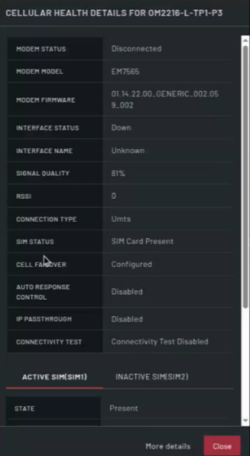
| Field | Description |
|---|---|
| Modem Status | Read-only field that displays the current state for the modem. |
| Modem Model | Read-only field that displays the model of the modem. If Lighthouse cannot retrieve this information, "Unavailable" displays. |
| Modem Firmware | Read-only field that displays the firmware installed on the modem. This field is blank if the Modem Model is "unavailable". |
| Interface Status | Read-only field that displays the state of the cellular interface on the node. Usually Up or Down. |
| Interface Name | Read-only field that displays the name of the cellular interface on the node. |
| Signal Quality | Read-only field that displays the quality of the cellular signal received by the antenna. |
| RSSI | Read-only field that displays the Received Signal Strength Indicator (RSSI). This is the raw power level of the signal received where a value closer to 0 is stronger, and a value closer to -100 is weaker. |
| Connection Type | Read-only field that displays the type of cellular connection, for example, LTE, 4G, 5G. |
| SIM Status | Read-only field that displays the status of the SIM: Present or Not Present. |
| Cell Failover | Read-only field that displays whether Cellular Failover is enabled on the Node. This is a node setting, configurable on the node UI. |
| IP Passthrough | Read-only field that displays whether the IP Passthrough feature is Enabled or Disabled on the node. |
| Connectivity Test | Read-only field that displays the status of cell connectivity test. You can enable the cell connectivity test on the Cell Health Reporting page. |
| Active SIM/Inactive SIM | Read-only fields that displays details of the SIM slots present on the modem. |
| More Details | Click this to open the NODE DETAILS page and view more information for the node. |
| Close | Close the dialog. |
MANAGE NODE PROFILE LINK dialog
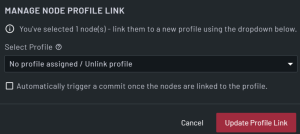
| Field | Description |
|---|---|
| Select Profile | From the drop down, select the group profile to link to from the node. |
| Automatically trigger... | Select the check box to automatically trigger a commit after the nodes are link to the profile. |
| Cancel | Click to cancel the selection and close the dialog. |
| Update Profile Link | Click to update the profile link to the selected Linked Profile. |
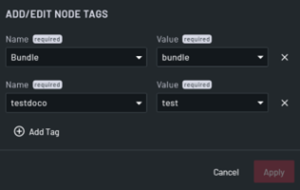
| Field | Description |
|---|---|
| Name | Enter/update the name for the tag. |
| Value | Enter/update a value associated to the Name of the tag. For example, if the Name is set to Location, you might enter the name of a city. |
| Add Tag | Click this button to add more Value fields and add additional tags. Click the x to remove the tag. |
| Cancel | Click this button to close the dialog without saving any changes. |
| Apply | Click this button to save the tag. |